Keyboard Shortcuts
Shows the keyboard shortcuts that work on the screen you’re on.
Turn the tool on from its card on the Power Toys dashboard. Then press ? anywhere in the
backoffice (except while you’re typing in a field), or use the keyboard button in the header. A
panel opens beside the page, and stays open while you move around the site.
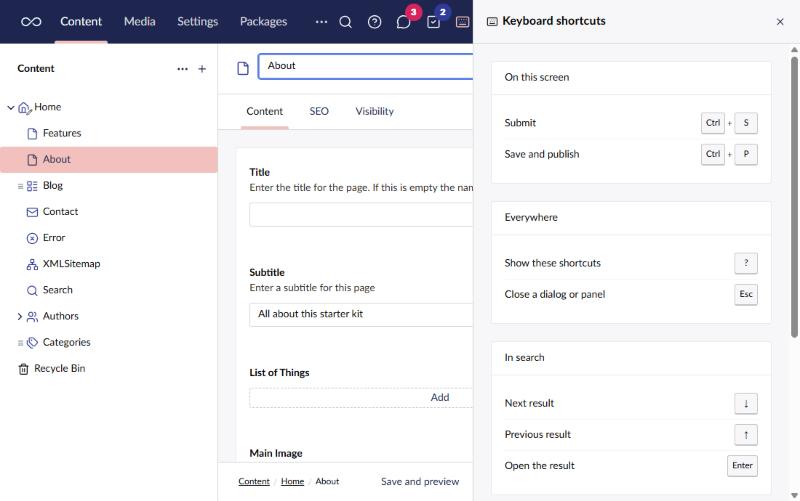
- On this screen - the shortcuts the item you have open registers, read live from Umbraco. On a page that’s save (Ctrl+S) and save and publish (Ctrl+P); on most other items it’s just save. Shortcuts that other packages register this way show up here too.
- Everywhere, In search, In the rich text editor - common keys Umbraco handles in its own components. They aren’t registered anywhere Umbraco can list, so this part is a fixed list.
On a Mac the panel shows ⌘ instead of Ctrl, to match how Umbraco reads the keys.
Your own shortcuts
Admins can add shortcuts for everyone on the site from the Keyboard Shortcuts card’s settings. Each one is a key combination, something to do, and an optional label for the panel.
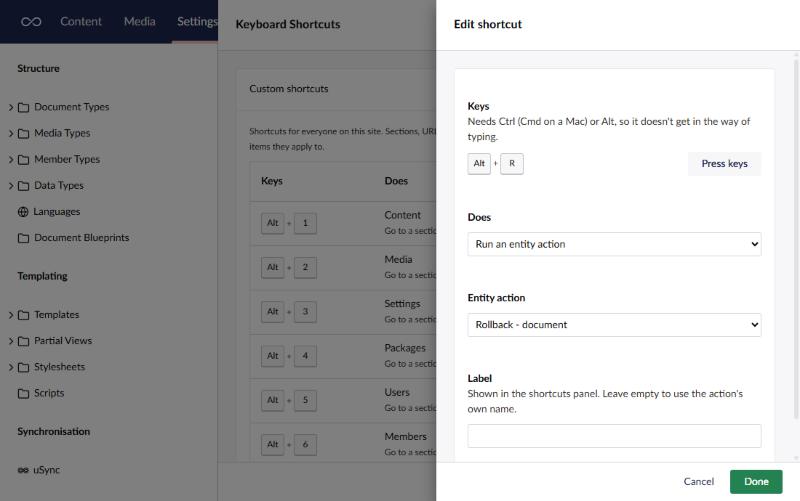
A shortcut can:
- Go to a section. Out of the box, Alt+1 to Alt+9 go to the sections in the order the header shows them. Change or remove them like any other shortcut. Someone without access to a section isn’t taken there.
- Go to a URL. A backoffice path such as
/umbraco/section/mediaopens in place; a full link opens in a new tab. - Open search.
- Open a Power Toys panel: BackChat, Tasks or Keyboard Shortcuts.
- Run a workspace action, such as Save and preview.
- Run an entity action on the item you have open, such as Rollback or Copy.
Section, URL, search and panel shortcuts work anywhere in the backoffice. Workspace and entity actions only work where they apply: on the items they’re for, and for people allowed to use them. They show under “On this screen” when they do. Actions that other packages add can be picked too.
A shortcut needs Ctrl (Cmd on a Mac) or Alt, so it never gets in the way of typing. Set the keys with Press keys and then press the combination. The settings warn when the keys are already taken: by another shortcut, by Umbraco’s save and publish, by the rich text editor, or by keys browsers keep for themselves (Ctrl+T, Ctrl+W, Ctrl+N).
The shortcuts can be set in appsettings.json instead, under PowerToys:KeyboardShortcuts, like
any power toy’s settings.